Help centre · Your booking page
Your booking page
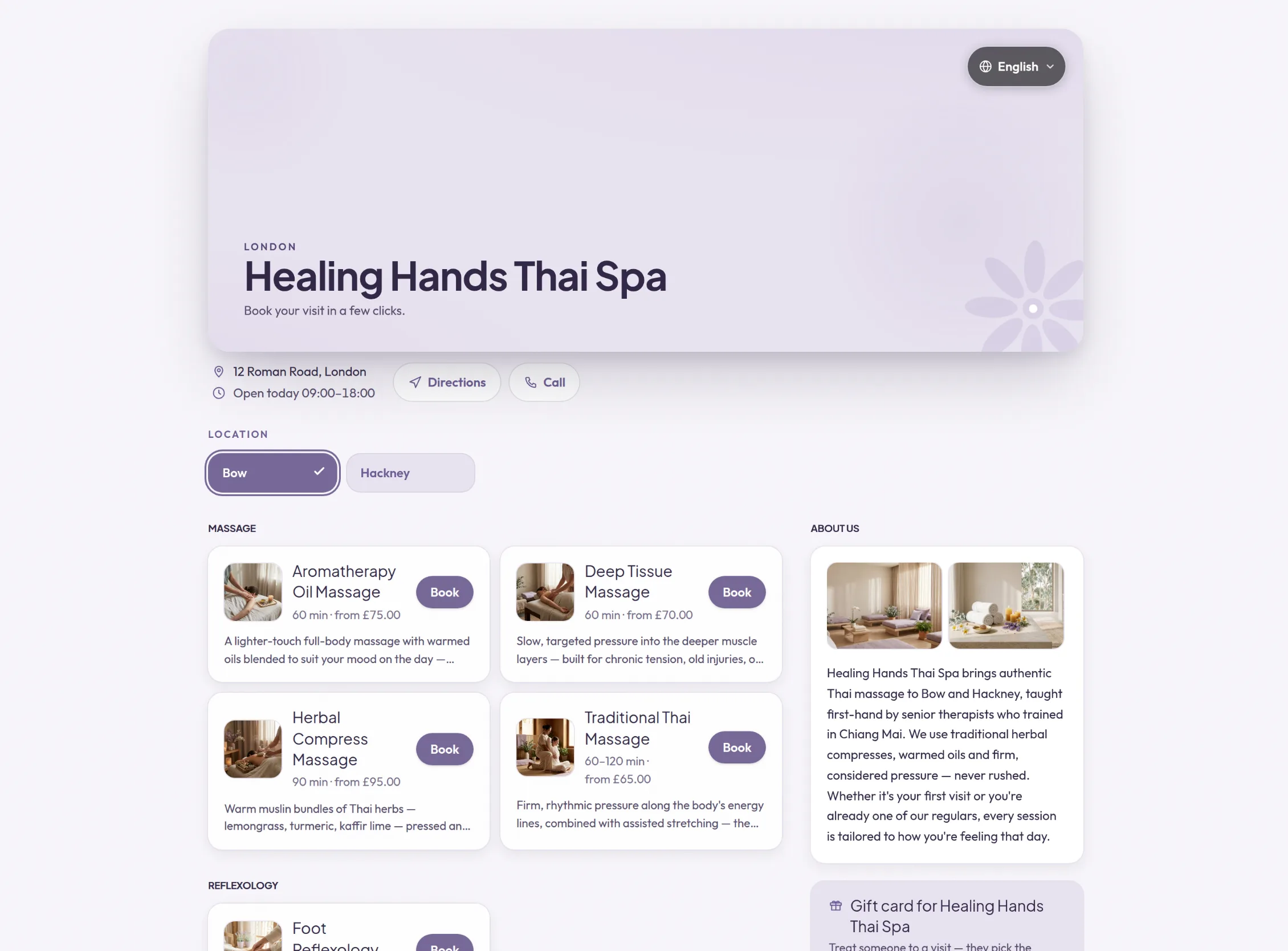
Your booking page is where customers choose a service, a person and a time, and book. It carries your name, photos and theme, and promotes only your business.
When you would use it
Use it as the one link you give everyone: on your website, in your social media profiles, on business cards and in messages to customers.
How to set it up
- Open Business. Under Brand, choose a Theme.
- Under About your business, write a short About text and add up to ten photos to the Photo gallery.
- Under Website and social media, add Your website and your social media profiles. They appear as buttons on the page.
- Under Localisation, set the Customer-facing language. Your booking page is shown in this language.
- Check each location's address, phone number and parking details under Locations. If you work from home, turn on Keep my street address private: customers then see only your town until they have booked.
- Select View your booking page to see the page as your customers see it.
What your customers see
Customers see your cover photo and name, your services grouped by category with their prices and durations, your team, your published reviews, your opening hours and a map. They choose a service, then a person or anyone available, then a day and a time, enter their details and confirm. They can book as a guest or sign in to an account that keeps their bookings together. If you sell gift cards or session packs, those are on the page too.
Examples from different trades
- BarberAdd photos of the shop and your work to the gallery, group services into cuts and beards, and let customers choose their usual barber or anyone available.
- PhysiotherapistUse the About text to explain what happens at a first assessment, and list first assessments and follow-up sessions in separate categories.
- Mobile beauty therapistKeep your street address private, so customers see only your town until their appointment is booked.