Help centre · Customers
Rules before booking
Rules decide who can book what: a service can require an earlier visit, bookings can wait for your approval, and a cancellation window stops late changes online.
When you would use it
Use them when a service is not suitable for everyone, when you want to meet new customers first, or when late cancellations cost you.
How to set it up
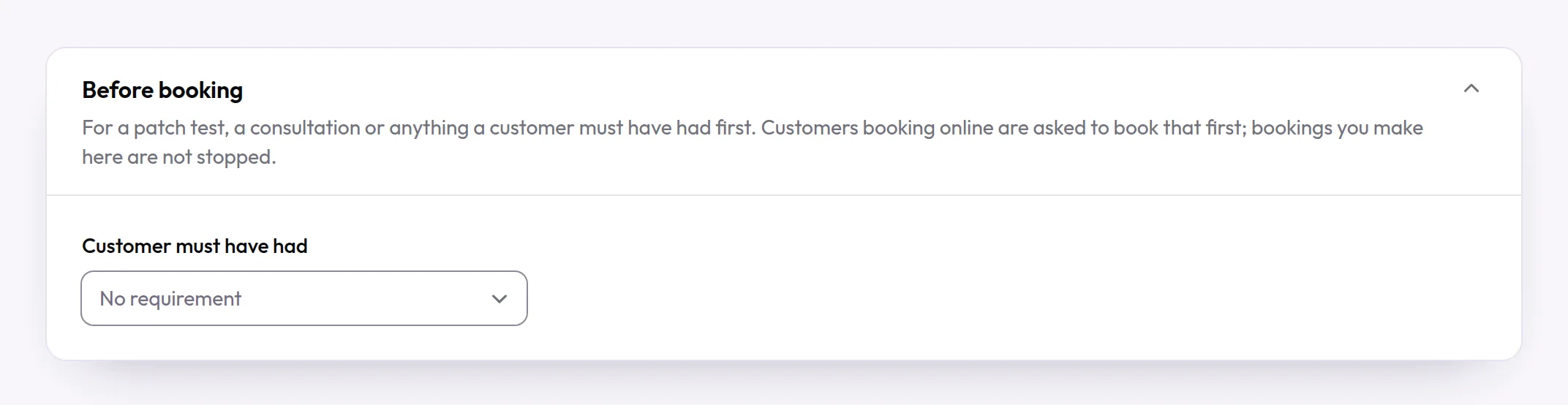
- To require an earlier visit, open a service under Services and go to Before booking.
- Choose the service under Customer must have had. If you need to, set At least this long before and Only counts if within. Turn on An earlier booking of this service also counts so customers can book again after their first visit.
- To approve bookings yourself, open Business, go to Booking approval and choose Who needs your approval: Everyone, New customers only or Chosen services. For chosen services, turn on Needs your approval on each service.
- Set Decline automatically after (hours), so that a request you do not answer does not wait indefinitely.
- Under Policies, set the Cancellation window (hours). Within that many hours of the appointment, customers can no longer cancel or move it online.
- Write your Cancellation policy (shown to customers). Customers see it when they book.
What your customers see
If a service needs an earlier visit, customers see the rule above the times and are asked to book that service first. When a booking needs your approval, customers see that their request has been sent, and receive an email once you answer. Close to the appointment, the option to cancel or move it online is no longer offered.
Examples from different trades
- Beauty therapistRequire a patch test at least 48 hours before a lash or brow tint.
- PhysiotherapistOnly let customers book a follow-up if they have had a first assessment in the last six months.
- Personal trainerApprove bookings from new customers only, so you can speak to each one before the first session.