Help centre · Customers
Walk-in queue
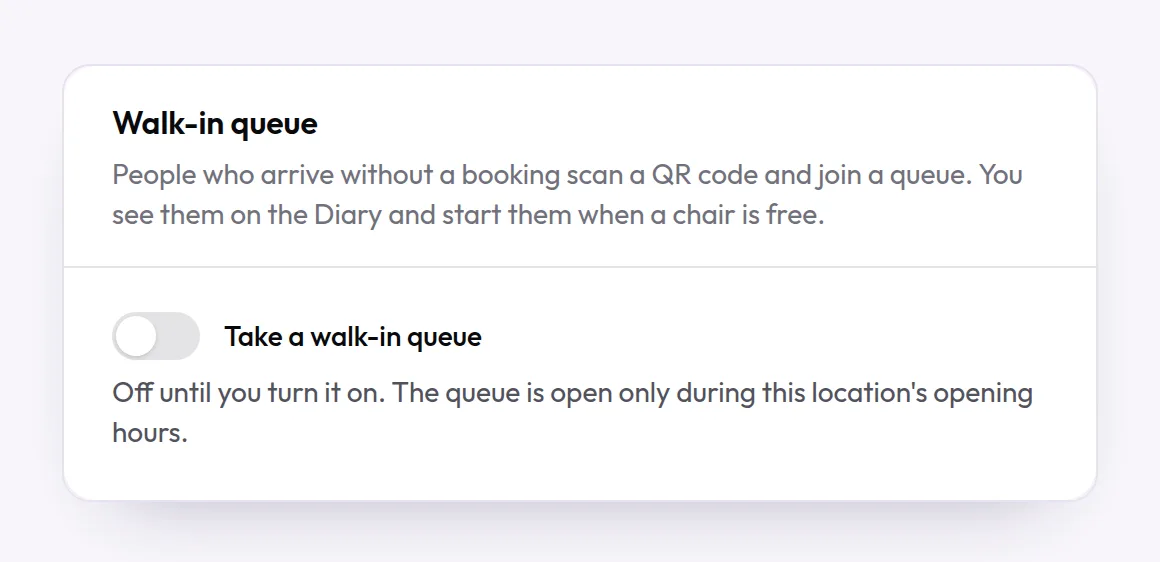
A walk-in queue lets customers who arrive without an appointment scan a QR code, join the queue and follow their place on their own phone. You start them from the Diary.
When you would use it
Use it if you take walk-ins and would like customers to wait somewhere other than your waiting area.
How to set it up
- Open Locations, edit the location and go to Walk-in queue.
- Turn on Take a walk-in queue and set Most people waiting at once.
- Save, then select Print the QR poster and put the poster where customers can see it. Open the queue page shows the page customers see.
- In Diary, the Queue panel lists today's queue. Select Start now when you are ready for someone, or Remove if they leave.
- The queue is open only during the location's opening hours.
What your customers see
Customers scan the code and enter their name and, if they wish, a mobile number and what they are there for. They then see their place, how many people are ahead of them and an estimated wait, and can leave the queue at any time. Where text messages are available and they gave a mobile number, they receive a text when they are next. Their details are deleted overnight.
Examples from different trades
- BarberPut the poster in the window, so passers-by can join the queue and get a coffee while they wait.
- Computer repair shopLet customers dropping off a laptop join the queue instead of standing at the counter.
- OpticianUse the queue for quick glasses adjustments, alongside booked eye tests.