Help centre · Customers
Waitlist
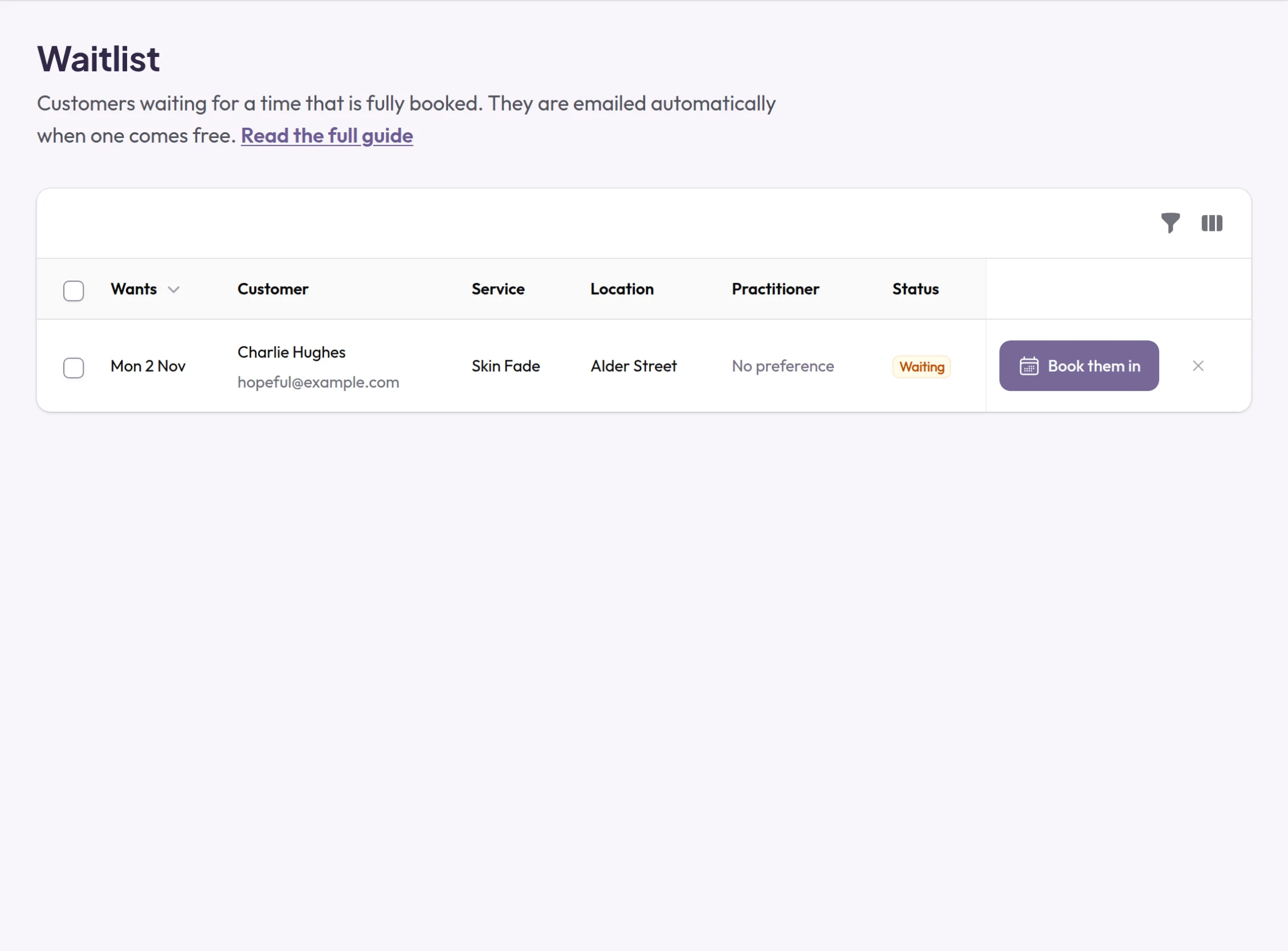
When a day is fully booked, customers can join the waitlist for it. If an appointment is then cancelled, the person who has waited longest is emailed straight away.
When you would use it
It works on its own for busy days. Use the list to see how much demand you are turning away.
How to set it up
- There is nothing to switch on: customers are offered the waitlist on any day with no times left.
- Open Waitlist to see who is waiting and what they want, with their Status: Waiting, Notified, Passed on or Booked.
- Filter the list by status or by location. If someone left a phone number, you can ring them instead.
- Delete entries you no longer need.
What your customers see
On a day with no free times, customers can join the waitlist with their name, their email address and, if they wish, a phone number. When a matching appointment is cancelled, the person who has waited longest receives an email with a link to book. The time is kept for them until the time given in that email, and they book it through that link. Meanwhile other customers cannot book it, although the team can still book it in Diary, which ends the offer. If they have not booked by then and the time is still free, it is offered to the next person.
Examples from different trades
- BarberSaturdays fill up first; customers who join the waitlist hear as soon as a chair comes free.
- PhysiotherapistPatients waiting for an early appointment are told the moment one is cancelled.
- Dog groomerIn the weeks before Christmas, check the waitlist to decide whether to open an extra day.