Help centre · Reports
Reports
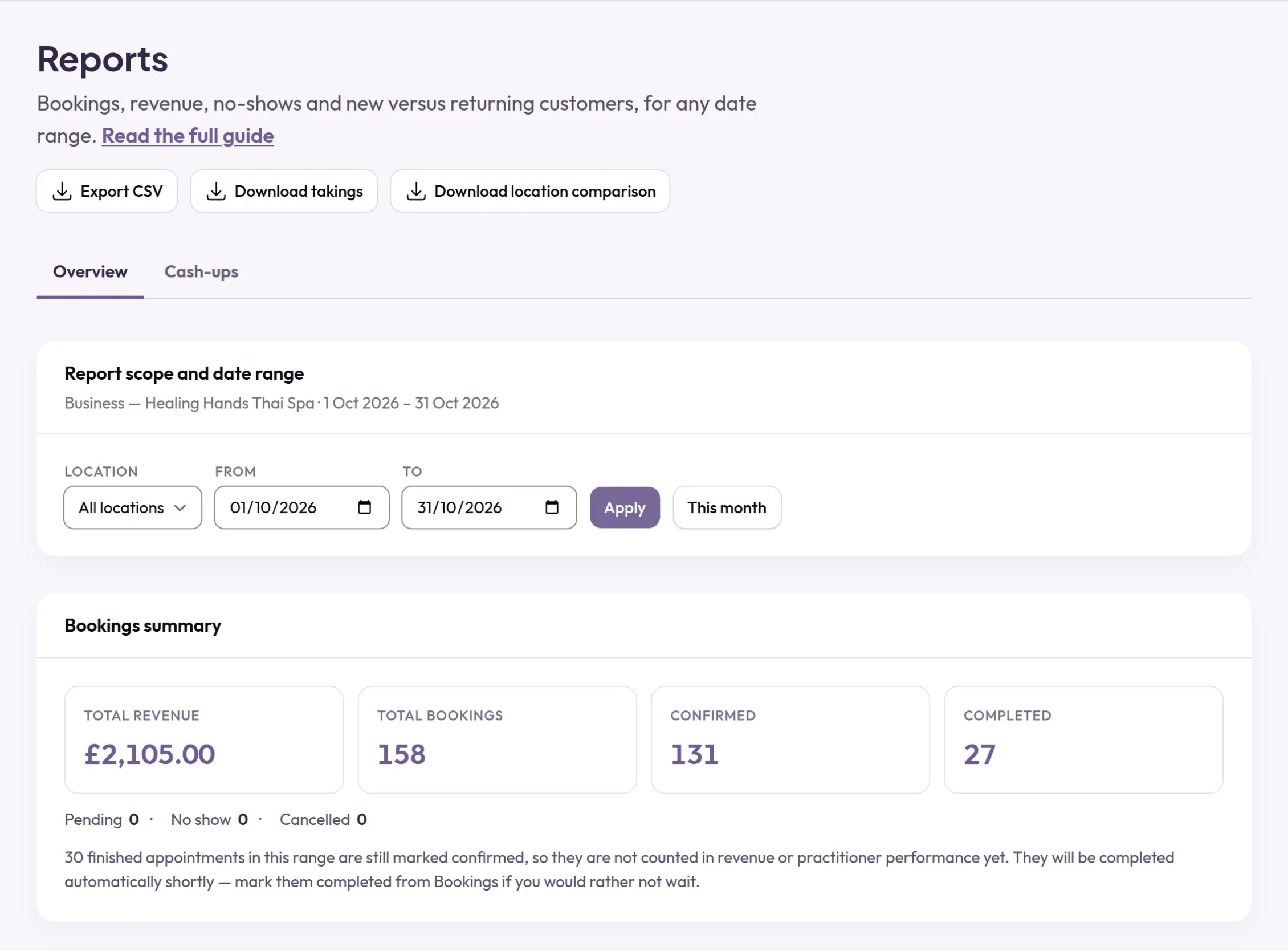
Reports show your bookings, revenue, new and returning customers, no-show rate and each person's figures, for any range of dates.
When you would use it
Look at them at the end of each month, after a promotion, or when you are deciding on staffing and opening hours.
How to set it up
- Open Reports. It starts with This month.
- Choose the From and To dates, and select Apply.
- Total revenue counts completed bookings only, so mark past appointments as completed, or leave automatic completion on.
- Further down, see bookings by status, first-time against repeat customers, the no-show rate, and each person's completed bookings and revenue. With two or more locations, a table shows how bookings are shared between them.
- For a quick view of the day, Overview shows Today's bookings, Next 7 days and Booked value (30 days).
- To work with your figures in a spreadsheet, use Export CSV on Reports for the bookings in the dates you chose, Download takings for the payments you took, and, with two or more locations, Download location comparison. Your client list has its own Export CSV on Clients.
What your customers see
Customers see none of this. Reports are open to the owner and to location managers, who see only their own locations. Practitioners do not see them.
Examples from different trades
- Personal trainerWatch the no-show rate before and after setting a no-show fee.
- BarberCompare each barber's completed bookings to plan the Saturday rota.
- Beauty therapistCheck first-time against repeat customers the month after an opening offer.