Help centre Services and pricing
Add-ons and promo codes
Add-ons are extras a customer can add to a service, each with its own time and price. Promo codes take a percentage or a fixed amount off a booking.
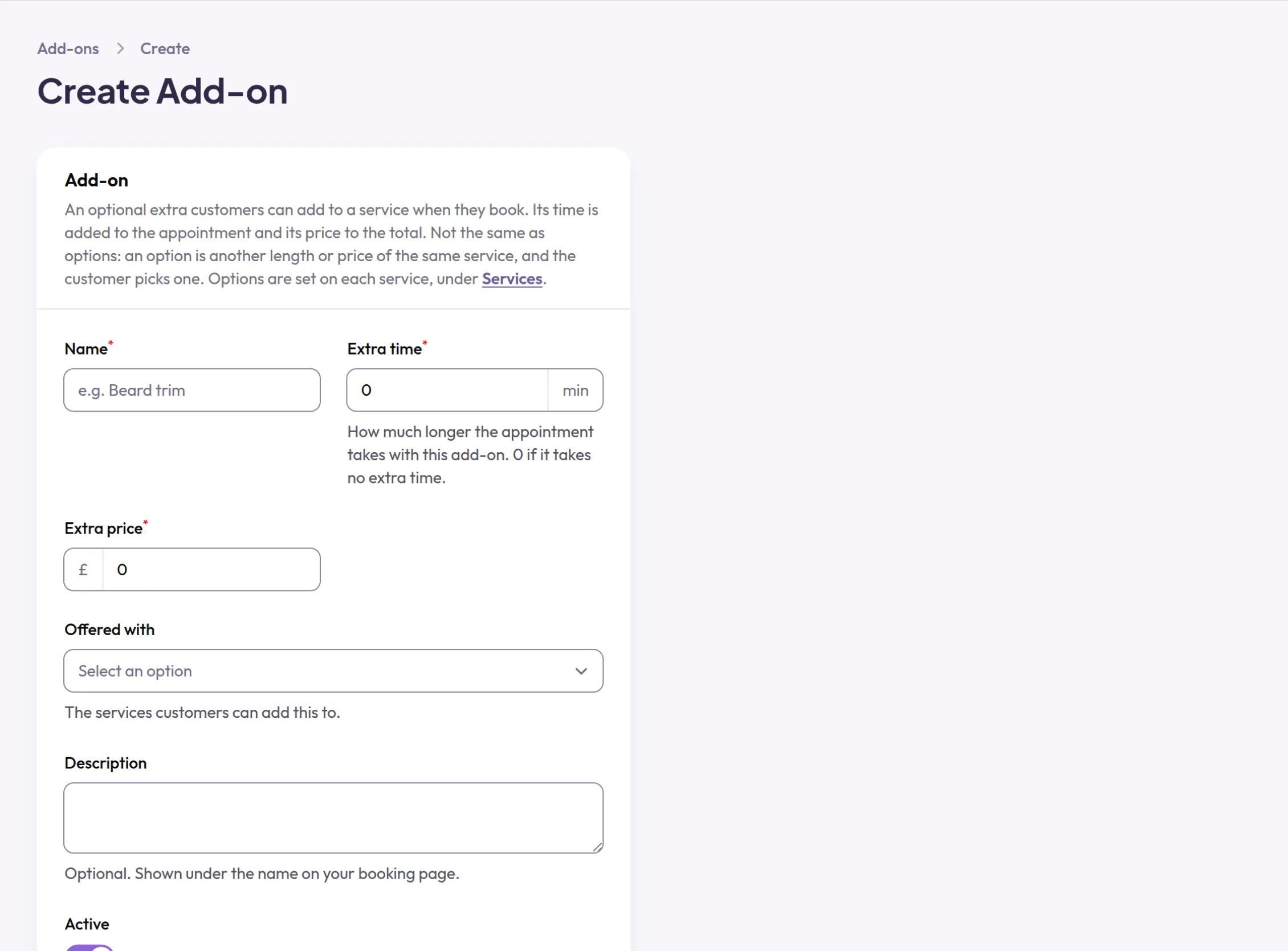
When you would use it
Use add-ons for small extras you would otherwise have to ask about, and promo codes for an opening offer, a newsletter or a quiet week. An add-on is not one of a service's Options: an option is another length or price of the same service, and the customer picks one, set on the service itself under Services. An add-on is booked on top.
How to set it up
- Open Add-ons and add one, with a Name, the Extra time and the Extra price.
- Under Offered with, choose the services it can be added to, and leave Active on.
- For a promo code, open Promo codes and enter the Code that customers will type.
- Choose the Discount: A percentage off or A fixed amount off, and enter the amount.
- Under Rules, set any limits you need: First day it works, Last day it works, Total number of uses, Once per customer, New customers only or Only for these services.
- Keep Active on while the offer runs. A code that has been used cannot be deleted, so switch it off instead.
What your customers see
After choosing a service, customers see its add-ons and can switch each one on. The time, the price and the available times all change to include them, and the confirmation email lists the extras. While at least one promo code is active, the booking form offers a box to enter one; the discount is shown in the confirmation email.
Examples from different trades
- BarberOffer a hot towel finish as a 10-minute add-on to every cut, so the extra time is kept free in the Diary.
- Dog groomerAdd nail clipping and teeth cleaning as add-ons to each groom.
- Personal trainerRun a code for 20% off, for new customers only, during the first month after you open.