Help centre · Getting started
Switch your booking link to Appoint Me
Most new customers find you on Google and tap Book. Moving to a new booking system mostly means changing that link, and the few other places you have shared it, so that every one of them opens your Appoint Me booking page.
When you would use it
Use this guide on the day you move from your old booking system, once your services, your team and your opening hours are set up and your booking page is live.
How to set it up
- On Overview, find Your booking page and select Copy link. This is the link you will paste everywhere below. To see which place brings in the most bookings, create a link for each one under Tracking links and use its Share link instead.
- Start with your Google Business Profile, because that is where most people find you. Open your profile on Google Search or Google Maps while signed in, select Edit profile and then Booking (some types of business see appointment links instead). Add your link, set it as the preferred link and remove the old one. Google only accepts links where people can book straight away, which your booking page does.
- If the old Book button came from a booking provider connected to Google, that provider controls it, not you. Under Booking, select Remove provider, or ask the provider to disconnect your profile. Google says a provider must remove its link within five days of being asked.
- Replace the link in your Instagram, Facebook and TikTok bios, on the Book button of your Facebook page and on every Book now button on your website.
- Update the places where customers message you: automatic replies in WhatsApp Business and Messenger, your email signature and any saved replies.
- Replace the QR codes on your window, flyers and business cards. Under Tracking links, QR code gives you a code that also counts the bookings it brings in.
- Keep your old system open until every appointment already booked there has taken place, or until those appointments are in Appoint Me: our free switching service moves your clients and your diary across for you. Then turn off online booking in the old system, so that nobody can book in two places.
What your customers see
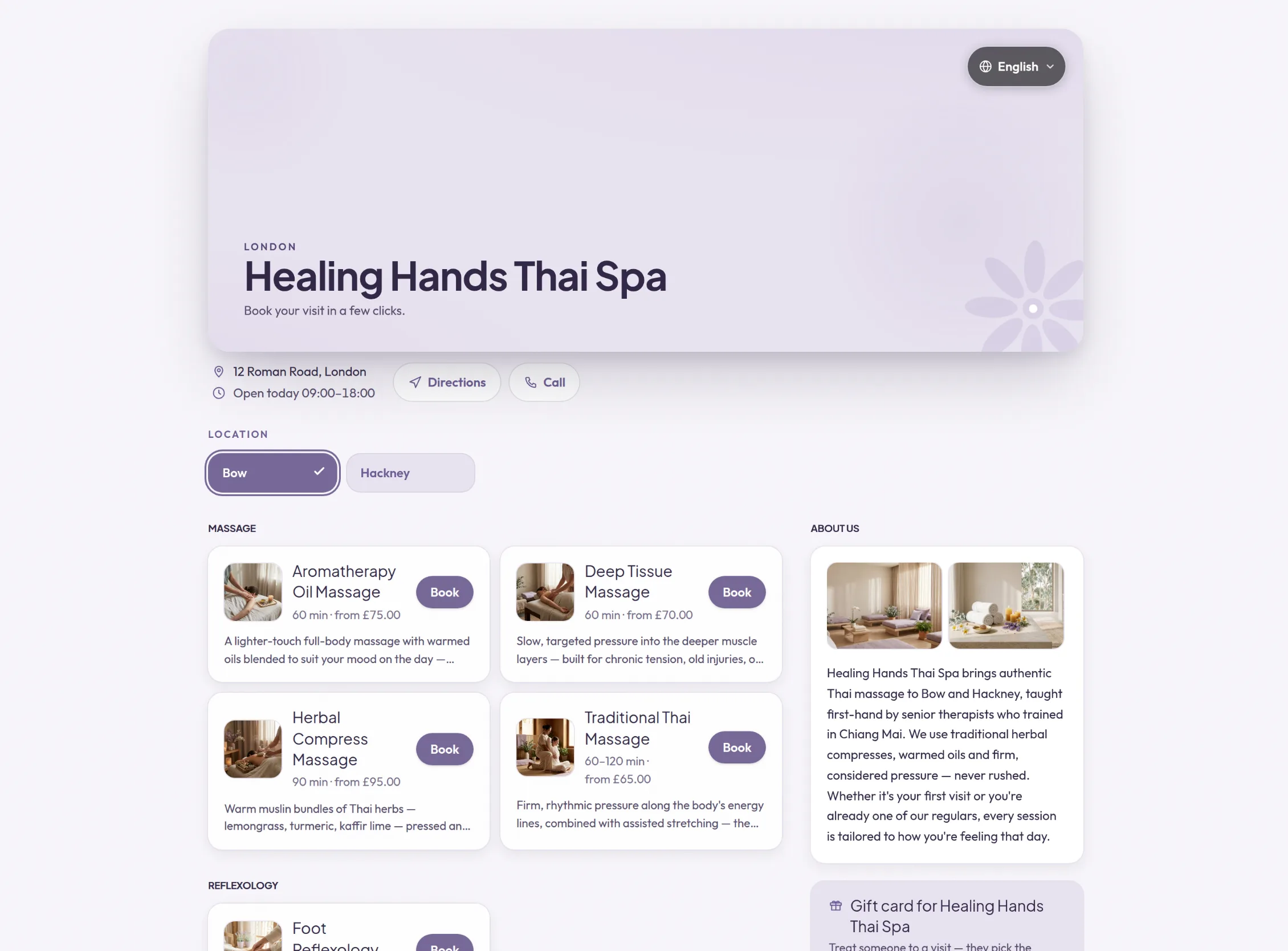
Customers tap the same Book button on Google, or the same link in your bio, and arrive on your Appoint Me booking page: your photos, your services and prices, your team and your free times, with only your business on it. They can book as a guest, without downloading an app or creating an account.
Your booking page can be your website
When someone finds you on Google and taps Book, your booking page is the first page of yours they see, and for many customers it is the only one. If it answers their questions, they book there and then. If it does not, they go looking elsewhere, and not all of them come back.
So give them everything in one place. Tell your story in the About text, and fill the Photo gallery with your premises, your work and your certificates and qualifications. Give each service its own description, photos and a video, so customers know exactly what they are booking. Your published reviews, with your customers' own photos, do the persuading for you, and your website and social media profiles are one tap away.
If you have no website, your booking page can be it: one link with everything a customer needs to choose you and book with confidence. If you do have one, keep it, link it from your booking page and point its Book now buttons here. Set it all up under Business and Services.
Examples from different trades
- Physiotherapy clinicChange the booking link on the clinic's Google profile and the Book now button on its website on the same afternoon, and add your qualifications to the photo gallery so new patients know who will treat them.
- Personal trainerMost new clients come from Instagram, so give the bio link its own tracking link, and add a short video to each type of session so people know what to expect.
- BarberChange the Book button on Google and the QR code in the window, and keep the old system open until the appointments already in it have taken place.